
DBZ Dokkan Battle is a Free-to-Play Gacha game where you have to collect several characters and upgrade them to the top level in order to win more often. While clearing levels and gaining experience needs grinding, you must also preserve your efforts to be on the safer side. In this guide, we have covered how to Transfer Data in DBZ Dokkan Battle.
Saving your game data can come in handy when you’re switching to a new device or if you somehow lose the game from your current device. It is a mere backup option that might prevent you from starting all over again and also from losing your current progress in the game. Read along further to learn more about sharing your game data.
How to Migrate Data in DBZ Dokkan Battle?
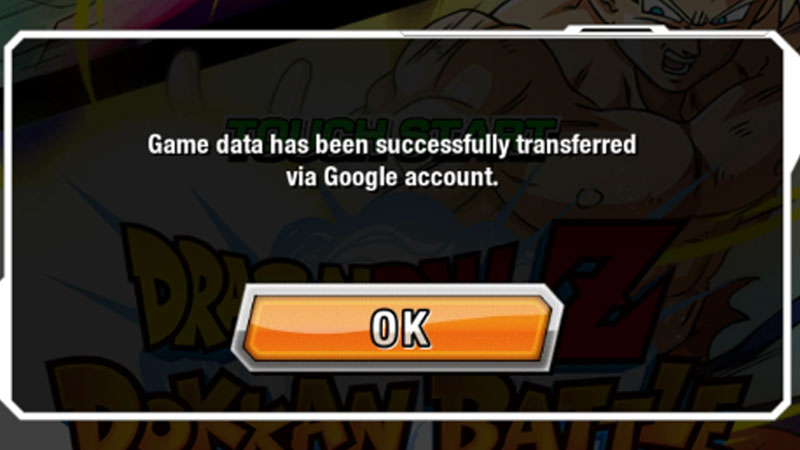
In order to Transfer Data in DBZ Dokkan Battle, there are two ways you can carry out this task. Fortunately, the process of saving and migrating data is similar in both Android and iOS devices. The steps to link up your game data and transfer it are given below.
- Open DBZ Dokkan Battle on your device,
- On the Main Screen, click on the Account Linking button at the bottom of the screen
OR - You can go to the Menu tab and select Data Linking & Back Up tab
- If you’re using an Android device, you will see Facebook Account Linking and Google Account Linking
- If you’re an iOS user, you will see Apple ID or Game Center Account Linking
- Link your Game Data accordingly
Now that you have learned how to link up your game data, you can proceed to Transfer Data in DBZ Dokkan Battle. Follow the steps given below.
- Install & run the game on the device you want to transfer data on
- Before starting, you will see two options on your Screen, Start Game and Continue Game
- Select Continue Game to Transfer Data
- Select the Account that you had linked your game data to
- Press OK
This way you can successfully Transfer Data in DBZ Dokkan Battle. This is all you need to know about carrying out this task. Hopefully, this guide was helpful to you. While you’re here, you can go ahead and browse through other similar articles such as How to Get Battlefield Memory in DBZ Dokkan Battle? and How to Get Dragon Stones Fast?