
‘Audio Services Not Responding’ issue is a common issue on Windows PC usually experienced when the drivers are auto-updated or when your sound device isn’t responding to your commands. It’s a general issue and can be fixed by following easy steps within a few minutes.
So if you are getting an ‘Audio Services Not Responding’ issue on your screen then look no further and dive straight into the steps to fix it!
Steps To Fix Audio Services Not Responding Issue On Pc:
Restart Your Audio Services
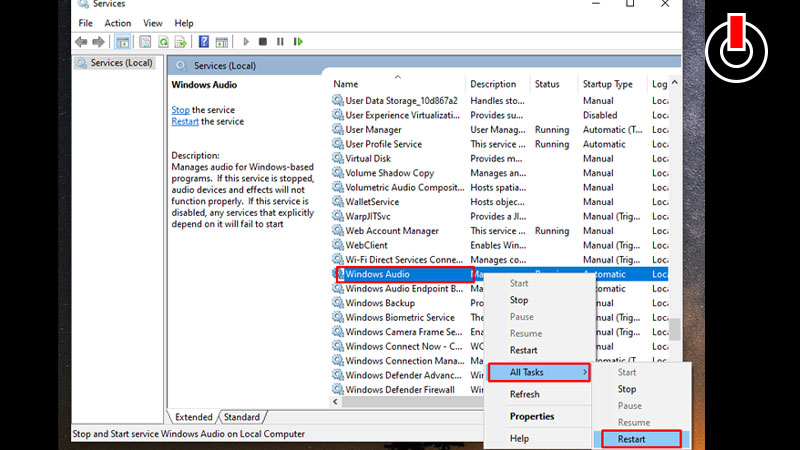
This is the first and one of the easiest ways to fix the Audio Service issue on your PC or Laptop. So before you head towards the complicated ways that involve plenty of steps follow the steps given below and see if it fixes the issue.
- Press Windows logo key+ R to open Run Commands.
- Now type ‘services.msc‘ and hit the Enter button.
- Now scroll through the list of all the services until you find ‘Windows Audio‘.
- Right-click on it and click on ‘Restart‘.
- Now right-click again and select ‘Properties‘ this time and set the Startup Type as ‘Automatic’.
- Hit the Apply button at the bottom of the box and close it.
- Now go back to services again and find ‘Windows Audio Endpoint Builder’.
- Right-click on it and click o the ‘Restart‘ option again.
- Also, Set the Startup Type as ‘Automatic‘ from the properties as we did it for ‘Windows Audio’
Once you are done with all the steps mentioned above restart your device and see check if Audio Services Not Responding issue is fixed.
Update Realtek or High Definition Audio Device
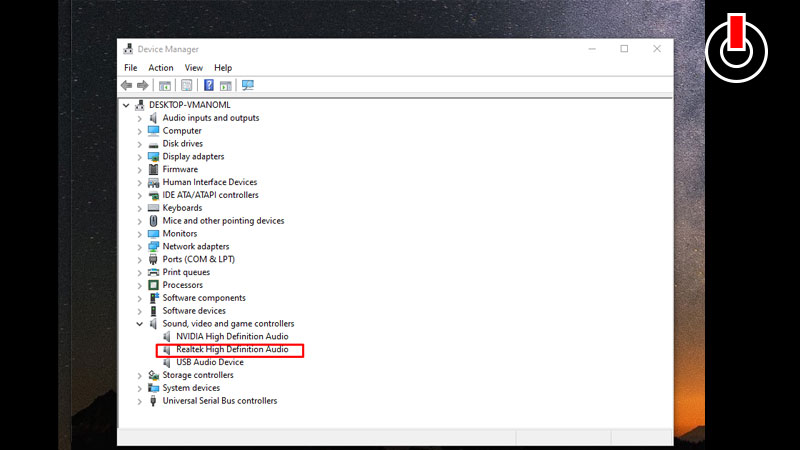
Here are all the steps to install or update the audio drivers on your PC.
- Press Windows logo key + X and click on the ‘Device Management’.
- Now look for ‘Sound, Video And Game Controllers‘ and click on it.
- Next, right-click on the ‘Realtek or High Definition Audio Device’ and hit on the ‘Update‘ option from the list.
- One new box will pop up select ‘Browse My Computer For Driver Software’ and navigate through the drives on your PC.
- Uncheck the box in front of ‘Show Compatible Hardware’ and move to the next screen.
- Scroll through all the drivers until you find ‘High Definition Audio Device’.
- Click on it, hit the ‘Next‘ button, and complete the installation process.
- Once drivers are installed, Restart your PC to ensure that the issue is fixed!
That’s all for this one. for more such guides for PC click on the link and stick around GamesAdda.in.