
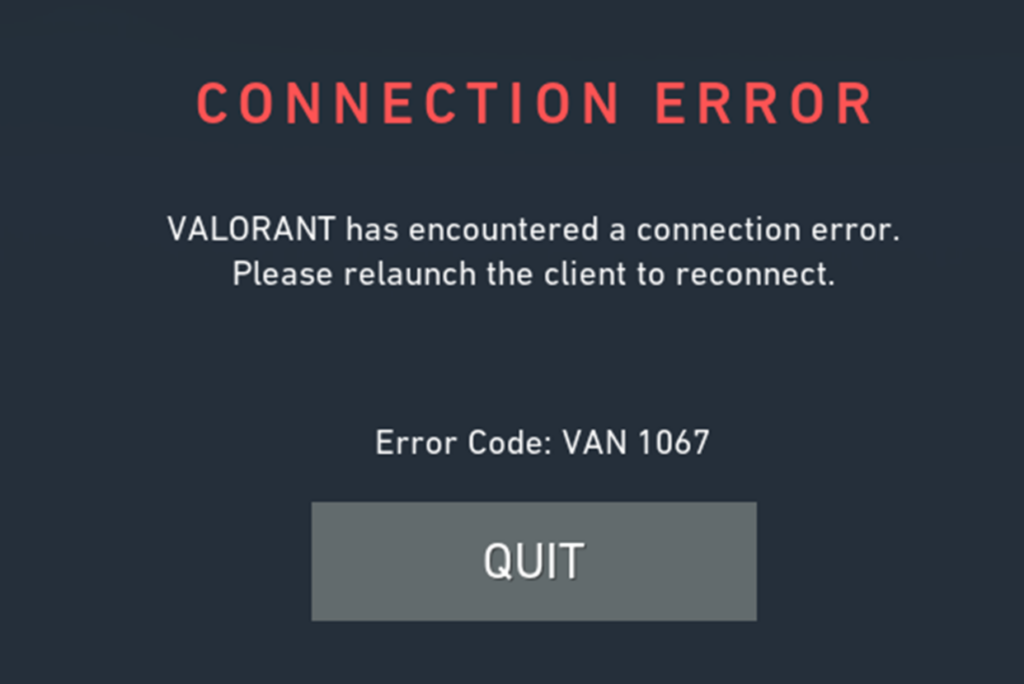
Have you upgraded your Windows OS recently and are now facing a certain VAN error 1067 while trying to play Valorant? You are not the only one. A lot of players that recently upgraded to Windows 11 have been facing issues when trying to play the first-person shooter game. Today, we will discuss the ways you can fix the VAN 1067 Error and enjoy Valorant on your updated Windows OS.
Valorant VAN 1067 Error
Why Does The VAN 1067 Error Occur?
The reason behind the error is that some requirements for Windows 11 and Valorant, namely TPM 2.0 and Secure Boot are clashing. In case either of these features is not functioning properly, players will not be able to play Valorant on their device. Secure Boot is a feature that has been brought forward by Windows to guard users against security threats. Meanwhile, TPM 2.0 is also a hardware security feature needed for Windows 11. Players will need both these features enabled to play Valorant on the updated Windows OS. In addition, the VAN 1067 error can also occur due to third-party software and not having the latest version of the OS installed. Read below to find out how you can fix this error.
How To Fix VAN 1067 Error In Valorant?
Enable TPM 2.0 and Secure Boot
To enable TPM 2.0 and Secure Boot on your device:
- Go to the Start Menu.
- Click Settings.
- Select Update & Security.
- Click Recovery.
- Select ‘Restart Now’ under the ‘Advanced startup’.
- Choose the Troubleshoot option.
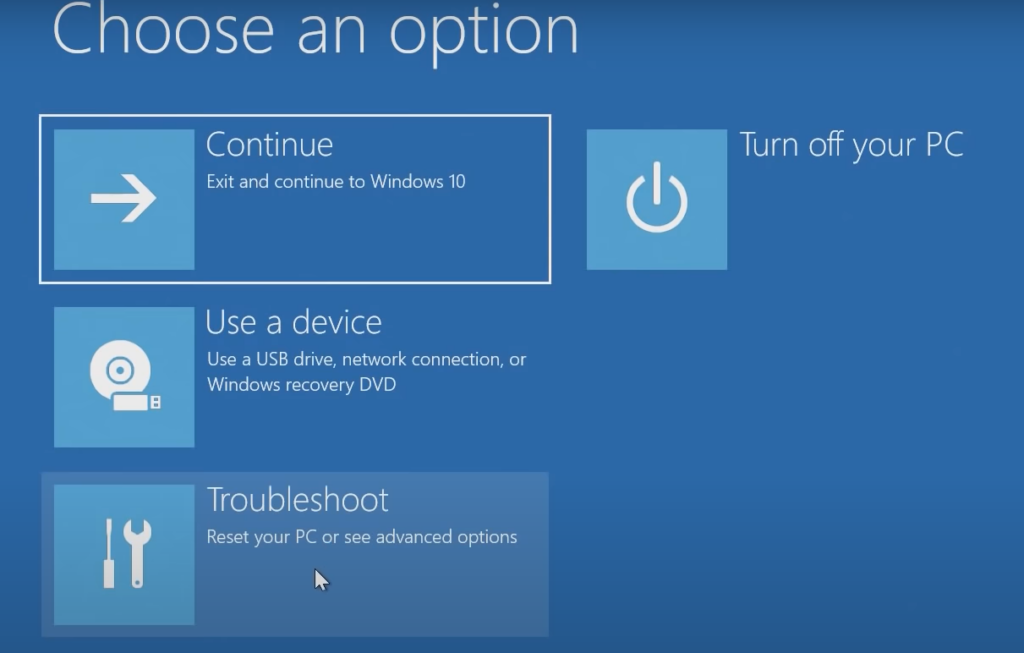
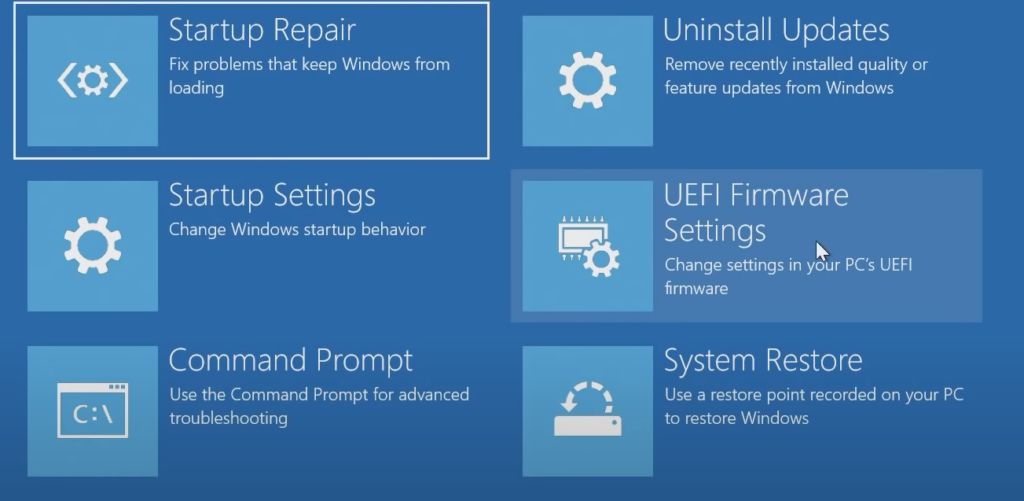
- Further, select the ‘Advanced Options’.
- Choose the UEFI Firmware Settings.
- Click Restart
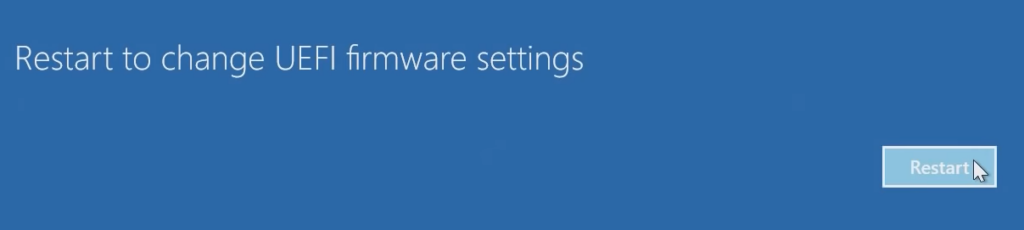
- The system should now restart into the BIOS.
- Go to the Security tab.
- Find Trusted Platform Module (TPM) and enable it.
- Similarly, find the Secure Boot and enable it.
Discord
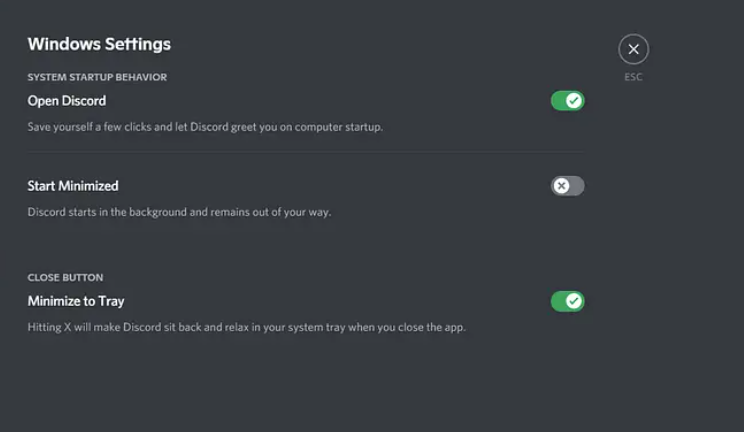
Discord can sometimes interfere with the proper functioning of Valorant and cause VAN 1067 error but there’s an easy way to fix it. You can simply choose to close Discord or right-click on the Discord icon and select Quit. Alternatively, you can also choose to disable Discord’s automatic boot. To do this, simply go to the Discord Settings Menu. Next, go to the Windows Settings. Disable the Open Discord option to turn off the automatic boot for Discord.
VGC Service
vgc.exe is an executable file that is necessary to run Valorant. If it is disabled, the VAN 1067 error will show up. To ensure that VGC service is running, follow the steps below.
- Open the Run Dialogue (Win+R).
- Type services.msc
- Click Ok.
- Find vgc service.
- Double-click and choose Start.
- Click Apply and Ok to save changes.
Update Windows
Ensure that you have the latest version of Windows installed. To check if there are any new updates available for Windows, follow the steps below.
- Open Settings.
- Go to the Windows Update Tab.
- Install the latest updates if any are available.
Clean Boot
Performing a Clean Boot on your device can also fix the Van 1067 error sometimes. Here is how to perform it.
- Type “msconfig” in the Start menu search bar.
- Click System Configuration and go to the Services tab.
- Select Hide all Microsoft Services.
- Click Disable all.
- Open Task Manager.
- Disable each app under the Startup tab.
- Go to Startup in System Configuration and click OK.
- Check if Valorant is functioning normally after this.
- If so, you will have to manually enable the apps one by one to find out which app is causing the VAN 1067 error in order to fix it.
These are all the ways that you can fix the VAN 1067 error when trying to play Valorant on Windows 11. For more Valorant troubleshooting, see how you can fix Error Code Van 84, TPM 2.0 Error, Error Code VAN 68, and Error Code: VAN 9001.