
Having a YouTube Channel of your own has provided a lot of people with immense exposure in the last decade. And myriad people upload a lot of content on their channel to gain more subscribers and reach the top. Apart from that, the recent updates introduced by the developers are attracting more users to the platform each day.
Amidst all this, if any user wants to discontinue uploading the videos or browsing on the platform altogether, there is a way to Delete a YouTube Channel too. In this guide, we have mentioned the steps to erase your channel from the streaming platform completely and temporarily. Read along with this guide to learn more about the same.
How to Delete a YouTube Channel on PC?
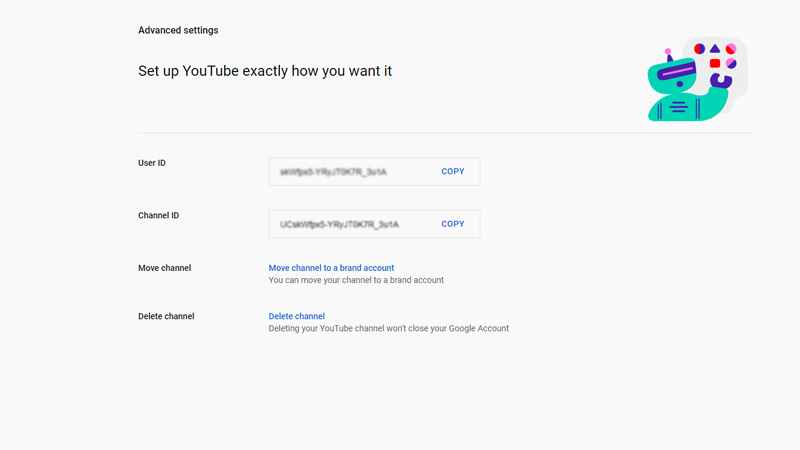
As per the guidelines of the platform, now you can’t delete your channel from mobile phones. So, you would need a computer or a Laptop to delete the channel. Also, when you decide to remove your channel from the platform, you will be given two options.
- Hide YouTube Channel
- Delete YouTube Channel Permanently
If you decide to hide your YouTube channel, you will be able to recover it easily. But if you choose to delete your channel permanently, each interaction done from your channel including the uploads will get erased. And you probably might not be able to recover that channel either.
Well, below are given the steps to Delete a YouTube Channel, follow these to proceed further.
- Open YouTube Studio and Sign in
- Navigate to Settings
- Click on the Channel tab
- Tap on the Advanced Settings tab
- Here, you have two options. You can either Hide or completely Delete your YouTube Channel
- If you simply want to Hide the channel, Click on Hide
- If you wish to Delete it permanently, select Delete
This is how you can Delete a YouTube Channel on a PC or Laptop. Hopefully, this article was helpful to you. While you’re here, you can go ahead and feel free to check out other similar guides such as How to Remove Google Account Profile from Computer and How to Disable Password from PDF.