
Discord is a popular platform within the gaming community. It allows gamers to have a place where they can communicate in-game as well as outside. In addition, Discord also offers the option for users to stream and share games. As cool as that may sound, the option can face a few bugs sometimes. One such error is the ‘Discord stream no sound’. This is when your stream is cast out without any audio. This can be quite problematic so today we will look at all the ways you can fix the ‘Discord stream no sound’ error.
How To Fix Discord Stream No Sound?
Method 1
- Disable Discord’s automatic boot option
- Start the Run application (Win+R)
- Search %appdata% and click OK
- Delete the Discord folder in the Roaming folder.
Method 2
- Open Windows Settings (Win+I)
- Click the Privacy option, then select microphone
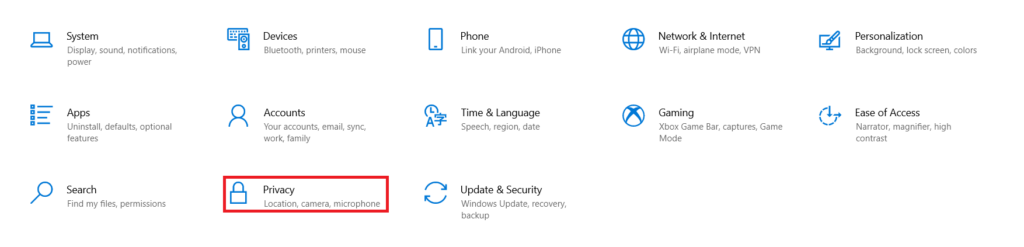
- From the list of apps, turn Microphone on for Discord
- Restart PC
Method 3
- Search for Device Manager in the Start Menu search bar
- Select Audio Inputs and Outputs
- Right-click the drivers listed and select update driver for each of them separately
- When prompted, click Search Automatically For Updated Driver Software.
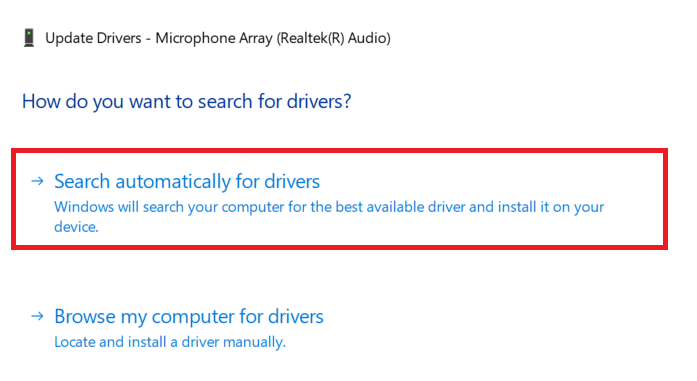
- Update the Drivers
Method 4
This method is solely for Discords users trying to share the Chrome screen and getting the ‘Discord stream no sound’ error.
- Go to Discord Settings
- Select Game Activity
- Add Google Chrome
Why Does ‘Discord Stream No Sound’ Error Occur?
There can be a lot of reasons for the ‘Discord stream no sound’ error. Some of them are listed below:
- Corrupted Cache: A corrupted cache can occur due to unexpected device shutdowns and anti viruses among many other reasons. These can be one of the reasons behind the error.
- Anti Malware: Sometimes the anti-malware that you are using on your device can misinterpret some Discord files as malware. It deletes them automatically and leads to the error occurring.
- OS Compatibility: An older OS can also be the reason behind the issue. Older OS versions do not support audio while screen sharing.
- Drivers: Discord needs up to date drivers in order to function properly. Older drivers sometimes hinder the proper functioning of Discord and cause no sound issues.
We hope that this guide was helpful to you. For more Discord tips and tricks, check out How To Fix Discord No Route Error Connection Issue?