
Twitch is community where you can sport other gamers as they livestream different games. A good way to show support for a channel is through hosting their stream. Not only does this offer support to the other streamer but it can also help bring more viewers to your channel. Hosting a channel basically means that the streamer will feature on your channel while you are offline. This will give any viewers that come to your channel, a chance to discover another streamer. Today, we will guide you how you can host a channel on Twitch.
Host A Channel On Twitch
There are two ways to host another channel on Twitch. You can either host manually or automatically. We have explained both the methods below.
Host Manually
This is a good method to use for a new streamer that you have discovered. You want to support them but do not want them featuring regularly on your channel. For this, you can manually host the channel for as long as you want.
- Login to your Twitch account.
- Go to your profile by clicking on your profile picture.
- Select the My Channel option.
- Go to the chat option located towards the right.
- In the chat box, type /host Channel Name. Replace the channel name with the actual name of the channel you want to host.
- Send the message. You are now hosting the stream on your channel.
- To stop hosting the channel repat the same process but type /unhost Channel name in the chat box instead.
Auto Hosting
Twitch also gives the option to auto host. This method will automatically host select streamers on your channel when they start streaming even if you are offline at the time.
- Login to Twitch.
- Go to your Profile.
- Navigate to Settings.
- Now, select the Channel and Videos option.
- Scroll down to the Auto Hosting option.
- Turn on the Auto channels options.
- Now, go to the Autohost list.
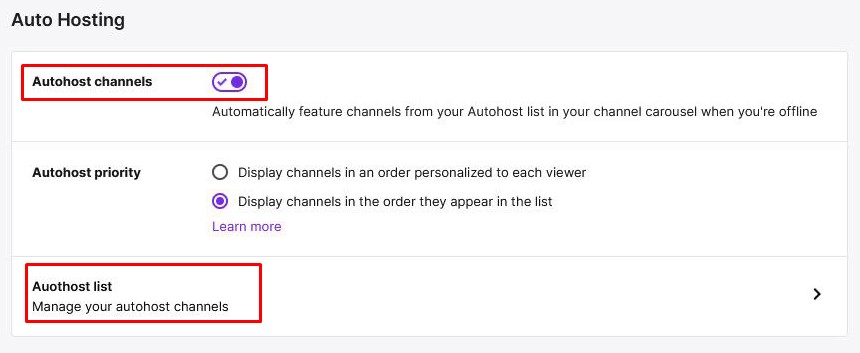
- Here add all the channels that you would like to host in your absence on Twitch. You can do this by searching for the channel and then clicking on the Add option. You can put as many channels as you want in the autohost list. If more than two streamers from the list are streaming at the same time, Twitch will select one randomly. However, players can also choose to set hosting preferences where they can assign higher priority to certain channels.
This is how you can host a channel on Twitch. While you are here, also check out How To Get A Gifted Sub On Twitch?