
Valorant is one of the most popular first-person shooter games available for PC. The developers of the game have kept its basic system requirement minimal for all the players to be able to play this game on their system. But still, there are many players experiencing issues with the FPS (Frames Per Rate) while playing Valorant on their PC and Laptop.
The Valorant FPS issue occurs when the game lags and does not move from one frame to another quickly and gets stuck for a fraction of seconds. This issue can be fixed by increasing the FPS in Valorant by following a few simple tricks.
Do you know how to boost FPS in Valorant? If your answer is NO and wants to learn then you must read this guide till the end. Without any further ado, let’s get started:
Valorant System Requirements:
| Minimum (30fps) | Recommended (60fps) | High-end (144+fps) | |
| OS | Windows 10 64-bit | Windows 10 64-bit | Windows 10 64-bit |
|---|---|---|---|
| CPU | AMD Athlon 200GE Intel Core 2 Duo E8400 |
AMD Ryzen 3 1200 Intel Core i3-4150 |
AMD Ryzen 5 2600X Intel Core i5-9400F |
| GPU | AMD R5 200 Intel HD 4000 |
AMD R7 240 Nvidia GT 730 |
AMD R7 370 Nvidia GTX 1050 Ti |
| VRAM | 1GB | 1GB | 1GB |
| RAM | 4GB | 4GB | 4GB |
| Storage | 110GB | 110GB | 110GB SSD |
Tips And Tricks To Increase FPS In Valorant In 2022
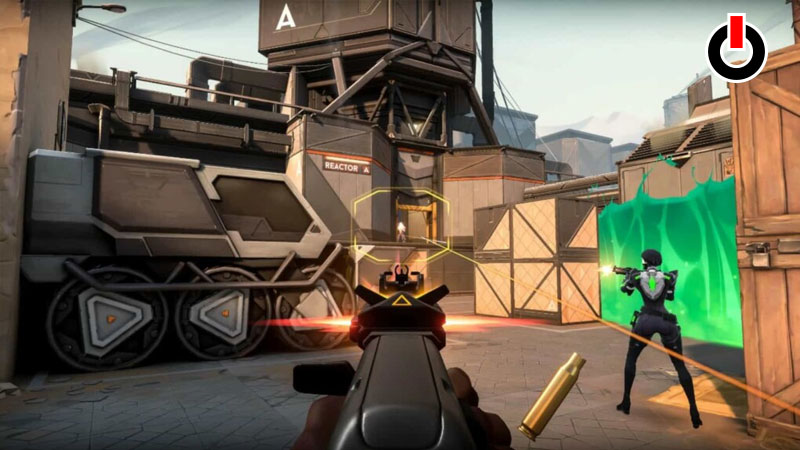
Though Valorant is made to run smoothly on a minimal system requirement there are many people experiencing this issue in high-end devices. There can be several reasons behind it.
Check the pointers given below and do the necessary alterations in-game and on your system to fix the issue and stop Valorant from Lagging.
- Check the minimum and recommended system requirements for Valorant and see if you meet the criteria.
- If you have a poor internet connection on your system then there is a chance for you to experience lagging even on high-end devices. So, run a quick speed test through your browser and see if your device is connected to the fastest internet connection.
- Run Valorant on High-Performance! You can do this through Task Manager on your PC. If you don’t know how to do that follow this quick pathway:
Right-click on Task Bar >> Open Task Manager >> Find Valorant in the list >> Right-click and head to Properties >> Check the box in front of the High-Performance option.
- If you are using a GPU on your PC then you can follow the same steps from the GPU Control Panel and set it on High Performace.
- If any of the above solutions do not work, head to the in-game settings and lower the Graphics Quality under the Video tab to fix the FPS problem in Valorant.
This is all you need to do to increase FPS in Valorant! Check out another article on who is Agent Neon in Valorant.