
Skype is a videoconferencing and instant messaging app operated under Microsoft. While the app is useful and easy-to-use, it can be a bit difficult to remove if users decide they want to delete their Skype account.
A common mistake that users make is not unlinking their Skype account from their Microsoft account. This can result in deletion of both the accounts. Therefore, users need to follow the steps below to remove Skype from their device.
Skype: How To Delete From Any Device?

The first thing users need to do before they start the process of deleting their Skype account is to unlink it from their Microsoft account. Otherwise, users will not be able to use any other apps associated with the account either. We have listed the steps to unlink the two accounts below.
How To Unlink Skype From The Microsoft Account?
- Go to Skype
- Sign in to the account
- Navigate to My Account and then open Account Details
- Go to Settings and preferences and choose the Account Settings
- Click the Unlink option
This will successfully unlink the two accounts. We can now start the process to delete the account.
How To Delete The Skype Account On Desktop?
Users that want to delete their Skype account from desktop can follow the steps given below.
- Go to Skype on the Desktop
- Click on the Skype Profile Picture in the top left corner
- Click on the Settings option and under Account & Profile select the Close your account option
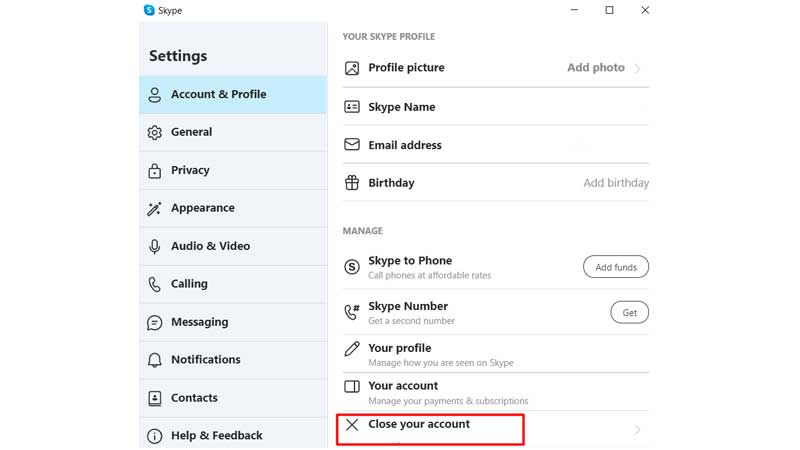
- Users will be asked to sign in to Skype again to verify the account.
- There will be certain instructions presented with the Ready to Close window. Read them and click Next.
- Users must follow the procedure and select the reason they want to delete their Skype account when asked.
- Tap the Mark account for closure option to complete the deletion.
How To Delete Skype Account On Mobile?
The process to delete the Skype account on Mobile is different to that for desktop. Given below are the instructions users can follow to remove Skype from their mobile device.
- Go to the Skype app
- Click on the Settings menu
- Choose Account & Profile
- Select the Close your account option
- Users will be asked to sign in to Skype again to verify the account
- After verifying the account, the Skype account will be deleted from the mobile device
This is how users can delete the Skype account from their desktop or mobile devices. If users are worried about their privacy while using certain apps, they should check out NewProfilePic App: Is It Safe To Use? (Answered)