
An .exe file is an executable file type that is very common in Windows programs. It is an essential file to run apps and programs on a Windows PC. However, the .exe file can also be used to spread viruses and malware that can infect the systems and even be used to steal information.
Users must be cautious when trying to open an. exe file as it can cause a lot of damage to the device. Files like music, picture, or documents do not have the .exe extension. Let us find out in a bit more detail what an .exe file is and how users can open it in their systems.
The. exe file extension is perhaps one of the most recognizable ones. It is often associated with Windows programming and may contain resources such as graphics assets for the GUI, the program’s icon, or other resources needed for the program to run.
Often, .exe files can be found in one of three types of programs: Setup.exe is often used to install software programs. Clicking on it generally starts an installation process for the program. Install.exe is another common name used for software installers. Cmd.exe is a shell program that replaced the command.com shell from Windows 2000.
Table of Contents
How To Open EXE File On Windows & MacOS?
Open EXE File On Windows
- Double-click the EXE file. It should start the process instantly. However, if the file is downloaded from the internet, users will be asked if they trust the file. Users should only click the file if they are sure it is not a virus or malware.
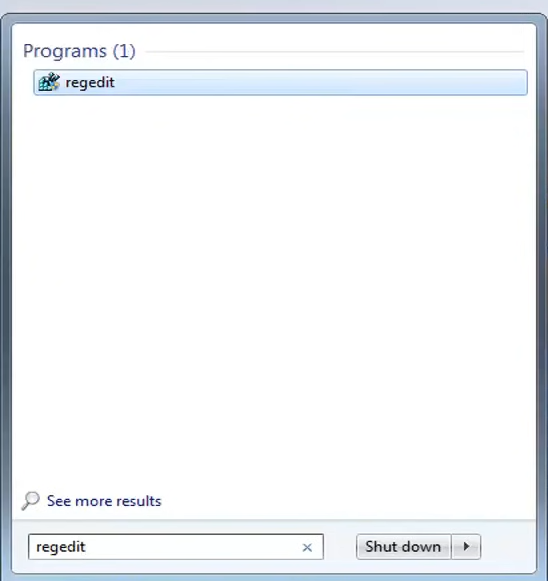
- If users are having trouble running the EXE file, they should open the Registry Editor. Press Windows Key + R and type ‘regedit’ to open the Registry Editor.
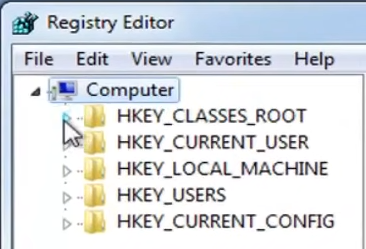
3. Go to .HKEY_CLASSES_ROOT/.exe from the navigation bar on the left.
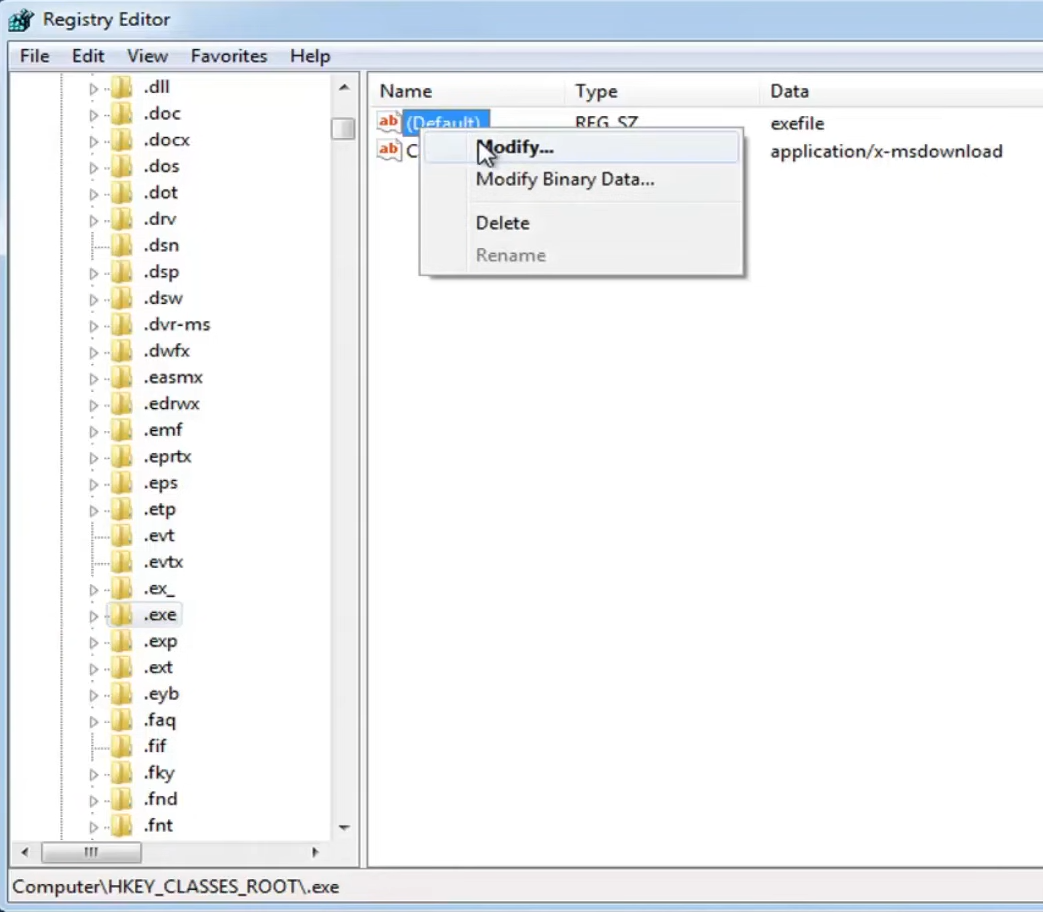
4. Right-click “Default” entry and select “Modify”. A new window will pop up.
5. Type .exefile into the “Value data” field.
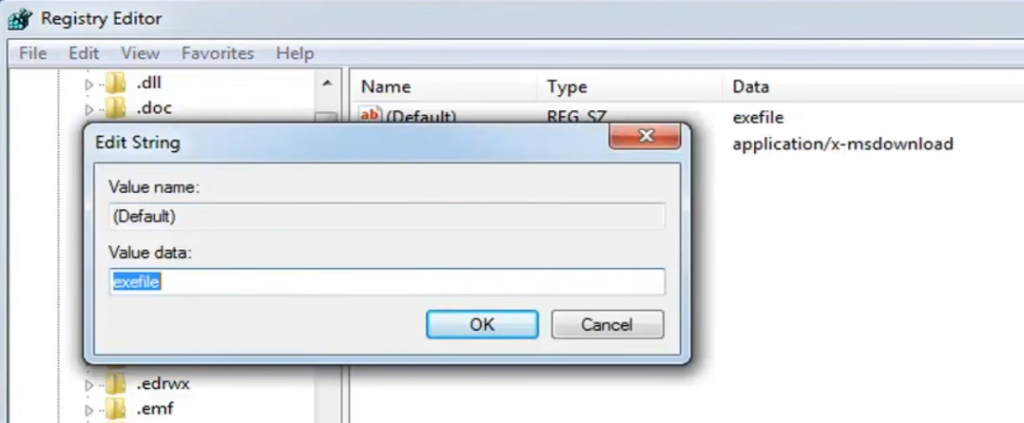 6. Click Ok to save.
7. Go to .HKEY_CLASSES_ROOT/.exe from the navigation bar on the left.
8. Right-click Default” entry and select “Modify”. A new window will pop up.
9. Enter .”%1″ %* into the “Value data” field. Click OK to save the changes.
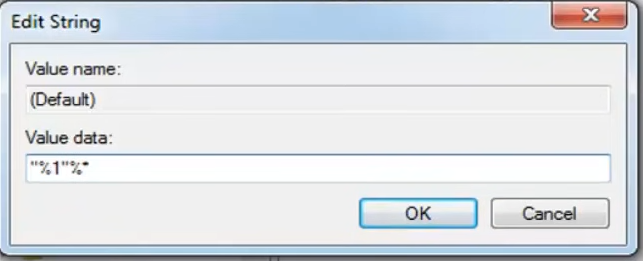
10. Go to .KEY_CLASSES_ROOT\exefile\shell\open from the navigation bar on the left.
11. Right-click Default” entry and select “Modify”. A new window will pop up.
12. Enter .”%1″ %* into the “Value data” field. Click OK to save the changes.
13. Reboot
Extract EXE Files
- Install an exacting software like 7-zip or WinRAR.
- Right-click the EXE File and select the extracting software. Then select Open archive.
- Browse the files that need to be extracted. Choose multiple files by holding CTRL and clicking each file.
- Select files and click Extract.
- Select a location to Extract to.
- This will start the extraction process.
Open EXE Files On OS X
- Download and install Xcode from the Mac App Store.
- Start Xcode after installing and click the “Xcode menu”.
- Select “Preferences”.
- Click “Downloads”
- Click the Install button that is situated next to “Command Line Tools”
- Download and Install MacPorts.
- Open the Terminal to adjust MacPorts’ settings.
- In the Terminal window, paste the following command and press Return: echo export PATH=/opt/local/bin:/opt/local/sbin:\$PATH$’\n’export MANPATH=/opt/local/man:\$MANPATH | sudo tee -a /etc/profile
- Enter admin password.
- Paste the following command and press return: if [ `sysctl -n hw.cpu64bit_capable` -eq 1 ] ; then echo “+universal” | sudo tee -a /opt/local/etc/macports/variants.conf; else echo “n/a”; fi
- Agree to the Xcode license by entering the command.
- Close and reopen the Terminal window after running the following command: sudo xcodebuild -license
- Enter the command and install wine.
- Once installation is complete, users will be returned to Terminal input: sudo port install wine
- Go to the location of the EXE file.
- Use wine to run the EXE file. Enter the following command to run the EXE file: wine fileName.exe
- Use the program normally.
- Users that have used an EXE file to install a program on OS X will need to use wine to run the program.
- Type cd ~/.wine/drive_c/Program\ Files/ to open the Program Files directory that your wine programs are installed to.
- Type ls to see a list of all of your installed programs. Next, Type cd programme to open a program’s directory. If the program’s directory has a space, you’ll need to include a \ before the space.
- Type ls again in the program’s directory to find the EXE file.
- Type wine fileName.exe to run the program.
This is everything you need to know about EXE files and how to open them. If you’d like to convert your EXE files to APK, we suggest reading How To Convert EXE to APK? Also, if you want to know what XAPK files are, check out: What Is XAPK File And How To Open It?