
Final Fantasy has built a loyal fanbase with multiple releases over decades. To keep the fans hooked they also keep on introducing new updates along with new installments. With so much content coming in sometimes players do face some errors. The unable to complete version update error is one of them. Let’s see how to fix the unable to complete version update error in FFXIV.
How To Fix The Unable To Complete Version Update Error In Final Fantasy 14?
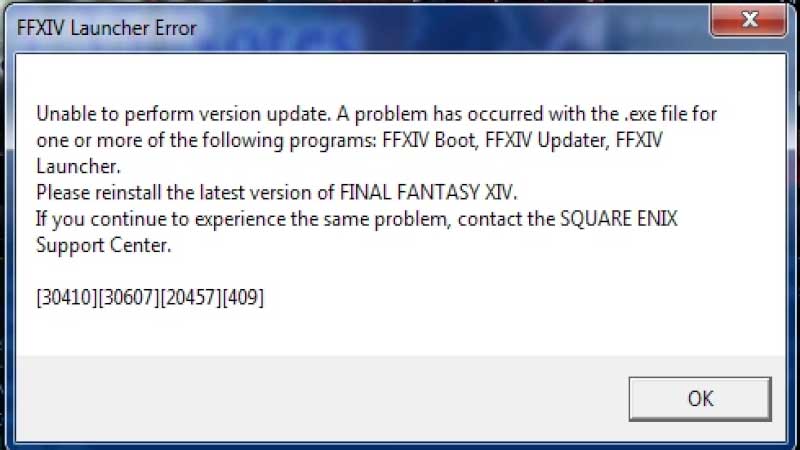
There is no official acknowledgment of the error which is why there is no specific way to fix it. Players from all across the internet have found solutions of their own. Here are some of the fixes you can try:
Game File Integrity
Press the right click on the Steam icon and select the “Run as administrator” option. Now look for the name of the game under the steam library. Right-click on final fantasy 14 and then select the properties option.
Go to the Local files tab and under it, you will find an option of “Verify Integrity of Game files”. Click on it and after the process is complete try launching the game again this time you might not see the Unable to complete version update error.
VPN and Server Issue
Sometimes the issue is with the server as some might be overburdened depending upon the time zones also. When you encounter the error try changing the server or the location using VPN. After you have changed try launching the game again and hopefully you might not see the Unable to complete version update error.
Background Application
Players should know that Final fantasy is a heavy game, and installing an update will furthermore increase the RAM requirements. Try clearing space by closing all the background apps to get some extra memory.
Firewall
Sometimes your firewall might misinterpret some game files and block them. Go to the start menu and select the Settings tab. Click on “Update and Security” and under it select the “Windows Security” option.
Look for the “Virus and Threat Protection” in the “Protection area” tab, right-click on it and select the “manage settings” option. Go to the “Real-time Protection” tab and set the toggle button to “off”. You will get a warning pop-up so select Yes on it. Once done restart your system and try launching the game again.
Antivirus
An error can occur in FFXIV because your antivirus might be blocking the file or might have deleted one. Turn off your antivirus and try launching the game as this might fix the issue.
Bandwith or Network issue
To play online on the over-burdened servers of Final Fantasy 14 you need a very good internet connection. If the bandwidth is low or there are some connectivity issues you might get the Unable to complete version check error.
Now that you know how to fix the error, do check out our article to know about the best DPS classes in the 5.4 update in FFXIV.