
Want to use Google Docs with Dark Mode activated? If you are concerned for your eyes, you will want to. Dark Mode is one of the handiest developments in recent years. It improves user experience by leaps and bounds. To add to its benefits, it puts less strain on your eyes while looking cooler. Win-win in my book. So, if you want to know how to activate it for your Chrome browser, scroll down and find out.
How to turn on Google Docs Dark Mode?
I will split this into two distinct platforms, Mobile Applications and Browsers. This will make it easier for you to distinguish.
Chrome Web Browser
- For Chrome the steps are a bit of a headache. Luckily, it is barely a minute-long process in total. Follow these steps given below:
- Open Chrome and open a new tab.
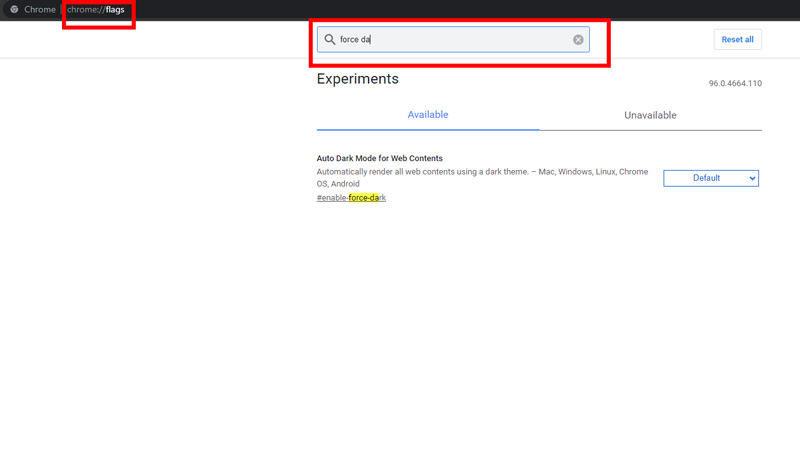
- Copy the command ‘chrome://flags/’ into the search tab on the top without the punctuation marks.
- Now, you will come across a page that says Experiments.
- On this page enter ‘Force Dark Mode’ in the search bar on the top.
- After this, you will see an option for ‘Auto Dark Mode for Web Contents’ that even works with Google Docs.
- Now, click on the Default button and wait for the drop-down list to appear.
- From the list select the Enable option.
- Choose the Relaunch option at the bottom of the page and Chrome will restart after this.
- Now, open Google Docs, and you will find the Night Mode activated.
Google Docs Dark Mode for Mobile Applications
- You will have an easier time activating the Dark Mode on apps.
- All you have to do is open the Google Docs application.
- Next, click on the Three Lines at the top left of the screen.
- Look for the ‘Settings’ option and click on it.
- Choose the ‘Theme’ option that comes up on the corresponding screen.
- Click on the Dark option and wait for the color to change.
Third-Party Extensions
There are various Third-Party Extensions as well that will change the color. Ivan Hidalgo has launched a Dark Mode extension that works really well. You will be able to access it via the interlink given in the previous sentence.
This is everything you need to know about Google Docs Dark Mode. Here at Games Adda, we cover a lot of helpful Tech tips and tricks. So, if you are facing any issues, make sure to check out our Tech Section.