
Do you want to learn how to make another account in Clash Royale? If YES, then here is a step-by-step guide for you. Check out the steps mentioned in the guide below and make another account in the same app. Make your new account and start your journey from level 1 again to understand the basics of the game once again!
Guide To Make Another Account In Clash Royale?
Here are all the steps to make another account on Clash Royale. Follow the simple easy steps written in the guide below and open the second account!
1. Launch Clash Royale on your device.
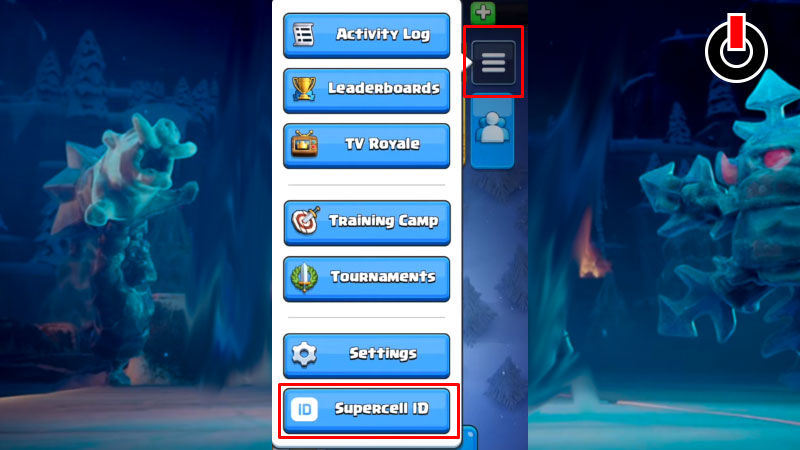
2. From the home screen click on the three-line icon shown in the image below and next hit on the Supercell ID option from the list.
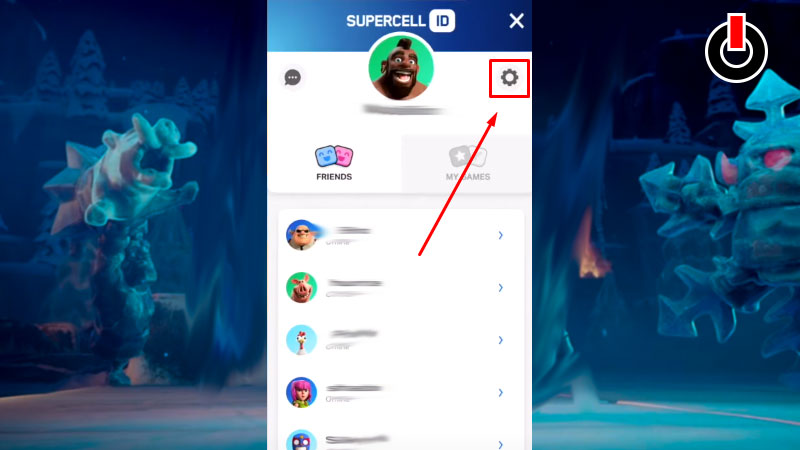
3. Once you open your Supercell profile, click on the Settings icon next to your profile icon.
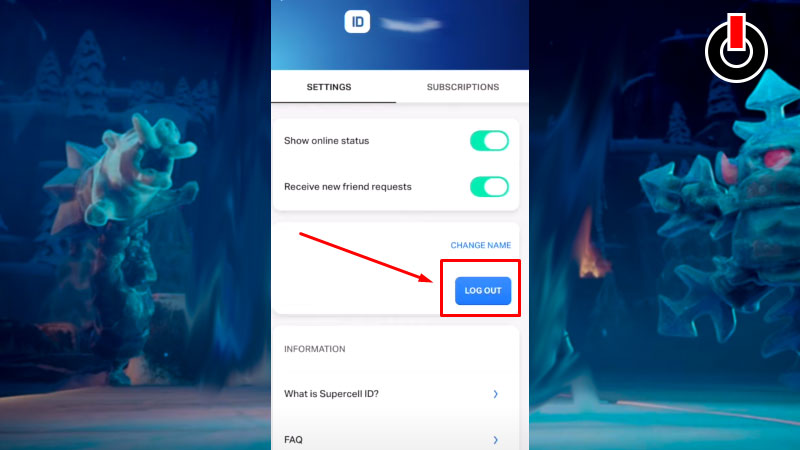
4. A new window will appear. Click on the ‘Log Out‘ button over there to exit from your current account.
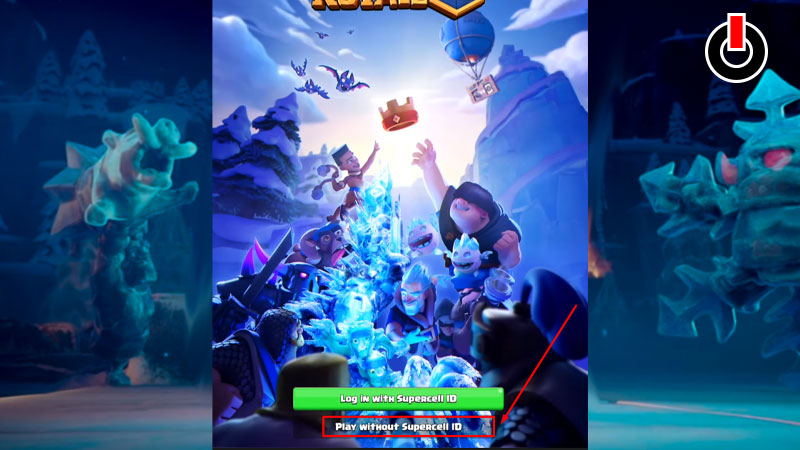
5. Now you will land up on the Login page again. Now click on the ‘Play Without Supercell ID‘ option to make another account in CXlash Royale.
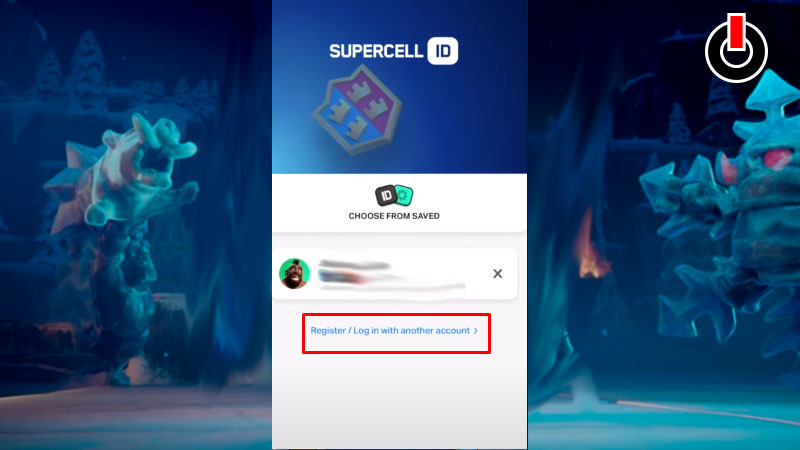
6. Complete the tutorial the way you did when you started playing Clash Royale. Once the tutorial is complete, you will be able to get to the home page of the game. Now click on the three-line icon again and hit the button on Supercell ID again. This time you will find a new option here “Login with another account” click on it and login from a fresh new account.
Home Screen >> Three Line Icon >> Supercell ID >> Login With Another account >> Register Now >> Continue >> Fill In Details
Note: Make sure you do not use the same email ID that you used for your previous account.
How To Play Clash Royale With Another Account On The Same Device?
Once you create another Clash Royale ID you will be able to see both your IDs in the game. All you have to do now is swap between your old and new accounts by going through the similar steps mentioned above. TRead further and find out how to do it.
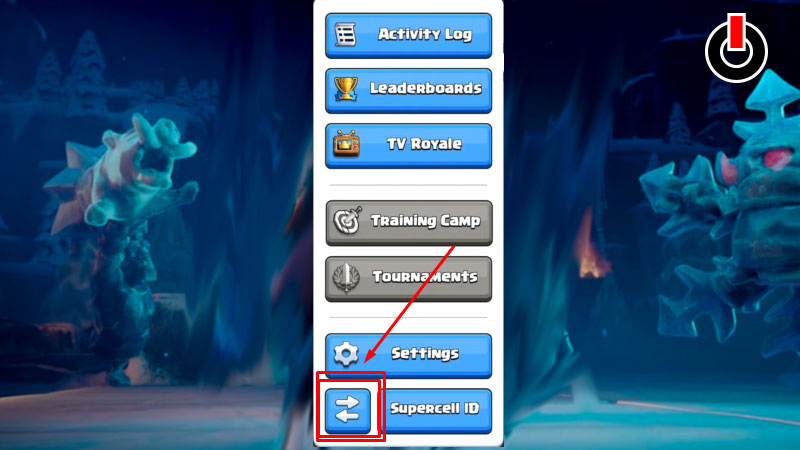
1. Head back to the main screen once you create the account and click on the three icon buttons.
2. Now you will find a Swap button next to the Supercell ID button which wasn’t there before.
3. Click on the Swap icon to play with another account in Clash Royale.
4. Make a choice between the saved accounts and enjoy playing your favorite Clash Royale with two different accounts!
Here we come to the end of the guide to make another account in Clash Royale. For more guides on Clash Royale Stick around GamesAdda.in.